How to Convert PNG to WebP: Complete Technical Guide to Reduce Size 26-80% (2026)
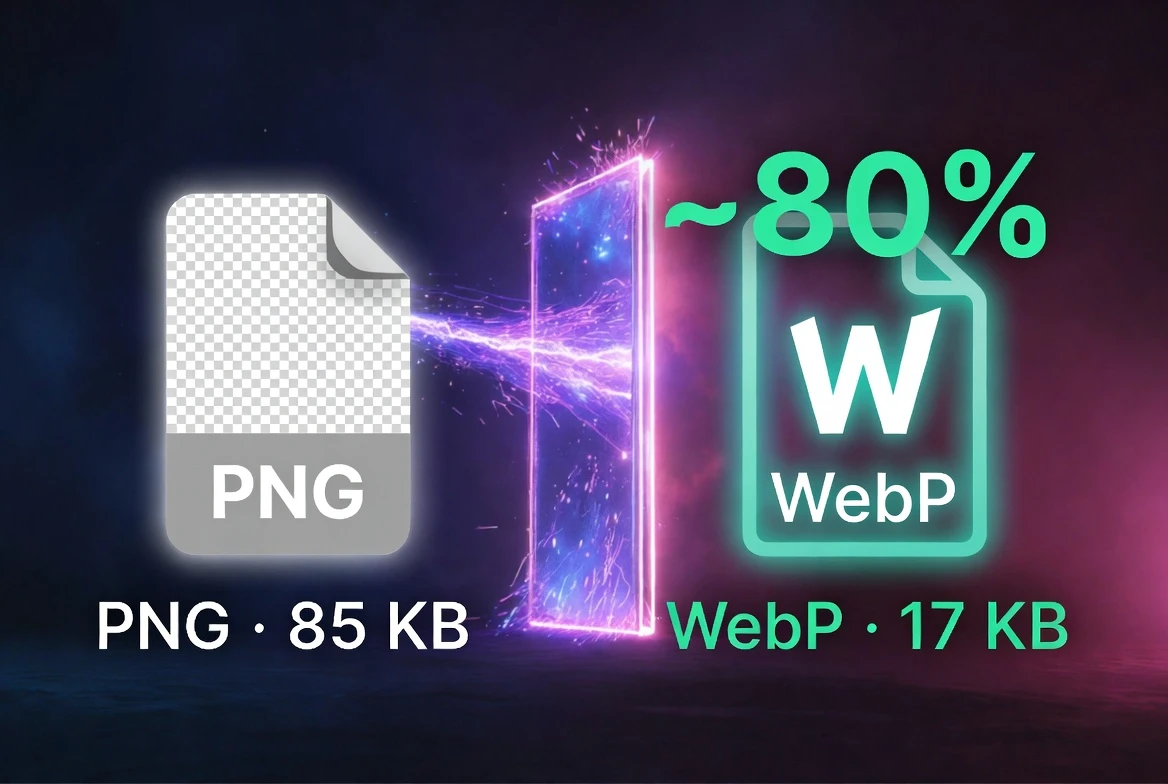
PNG has been for decades the reference format for web graphics with transparency: logos, icons, illustrations. The problem is that PNG uses lossless compression by default, making it one of the heaviest formats on the web. WebP solves exactly that problem: it supports alpha transparency just like PNG, but with 26% less weight in lossless mode and up to 80% less in lossy mode with transparency. In this guide we'll technically dissect how this conversion works and when to apply it.
We're not going to give you generic advice. We'll analyze the real technical differences between PNG and WebP, with data verified by Google and use cases that work in production today.
PNG vs WebP: The Key Difference That Changes Everything
PNG (Portable Network Graphics) was designed in 1995 as a GIF replacement. Its DEFLATE (lossless) compression guarantees that every pixel is preserved exactly. This is excellent for screenshots or graphics with text, but devastating for web performance because the resulting files are enormous.
Verified official data: WebP lossless is 26% smaller than equivalent PNG. WebP lossy with alpha transparency is up to 80% smaller than PNG. Source: Google Developers — WebP Compression Study, web.dev/images.
The Comparison Table That Matters
| Feature | PNG | WebP Lossless | WebP Lossy |
|---|---|---|---|
| Alpha Transparency | Yes | Yes | Yes |
| Quality loss | None | None | Minimal (configurable) |
| Typical size (500px logo) | 85 KB | 63 KB (−26%) | 17 KB (−80%) |
| Browser support | 100% | 95.38% | 95.38% |
Want to see the complete comparison with JPEG and AVIF? Read our technical analysis WebP vs AVIF vs JPEG with official SSIM/PSNR benchmarks.
How PNG to WebP Conversion Works
Converting PNG to WebP is not a simple extension change. It involves re-encoding the image data using WebP's compression engine, which is fundamentally different from PNG's DEFLATE.
Lossless Mode: Maximum Quality, 26% Less Weight
WebP lossless uses a spatial prediction system similar to PNG's but more sophisticated: it analyzes neighboring pixels to predict the current pixel's value and only encodes the prediction error. It additionally applies color transforms and LZ77 + multi-stage Huffman entropy coding.
Lossy Mode with Transparency: Up to 80% Less Weight
WebP lossy compresses RGB channels using the VP8 algorithm (DCT block-based predictive encoding), while keeping the alpha channel with separate lossless compression. This allows dramatic reductions in image weight while maintaining sharp transparency edges — crucial for logos on variable backgrounds.
When to use each mode: Use WebP lossless for screenshots, graphics with readable text or when pixel-perfect quality is critical. Use WebP lossy for photoreistically complex logos, illustrations with gradients or when web performance is the priority.
Professional Methods to Convert PNG to WebP
Method 1: cwebp (Official Google Tool)
The cwebp tool supports both lossless and lossy PNG conversion. It's free, available for Linux, Windows and macOS, and is the official reference implementation.
Lossless conversion (preserves every pixel):
cwebp -lossless logo.png -o logo.webpLossy conversion with quality 85 (recommended for most cases):
cwebp -q 85 -m 6 icon.png -o icon.webpBatch conversion of all PNGs in a directory:
for file in *.png; do
  base="${file%.*}"
  cwebp -q 85 -m 6 "$file" -o "${base}.webp"
done
Method 2: Sharp (Node.js) — Build Pipeline Integration
sharp is the most used image processing library in the Node.js ecosystem, with native support for high-performance PNG → WebP conversion. Internally uses libvips, significantly faster than ImageMagick.
Installation:
npm install sharpConversion script:
const sharp = require('sharp')

// Lossless conversion (maximum quality)
sharp('logo.png')
  .webp({ lossless: true })
  .toFile('logo.webp')

// Lossy with quality control
sharp('icon.png')
  .webp({ quality: 85, alphaQuality: 100 })
  .toFile('icon.webp')
Method 3: Online Tool — FormatVault
For one-time conversions or users without a technical environment, FormatVault converts PNG to WebP directly in the browser without uploading any file to external servers. Total privacy, free and unlimited.
- Drag the PNG to the converter
- Select WebP as the output format
- Adjust quality (85% recommended for most cases)
- Download the resulting WebP
When to Convert PNG to WebP and When Not To
Convert to WebP when:
- Web logos and icons: Most 200-500px PNG logos can switch to WebP lossy with no visible difference, reducing up to 80% in weight
- UI icons (interfaces): Buttons, illustrations, design elements served from a web server
- Transparent images in blogs or landing pages: Where load performance matters
- Open Graph / thumbnails: Social card images you use on your website (not those uploaded directly to social networks)
Do NOT convert to WebP when:
- Master design files: High-resolution originals for Figma, Illustrator or print must stay in PNG or SVG
- Social media uploads: Facebook, Instagram, Twitter/X still prefer JPG or PNG when uploading content
- Image editing software: Photoshop, GIMP, Affinity (older versions) may not open WebP natively
- Simple vector logos: If the logo is geometric with no complex gradients, SVG is always the best option (minimal weight, perfect scaling)
Alpha Transparency: The PNG Advantage That WebP Preserves
8-bit alpha transparency (256 opacity levels) is PNG's defining feature for web use. WebP supports it fully, in both lossless and lossy mode. This is the critical difference from JPEG, which doesn't support transparency at all.
Verified technical data: WebP lossy stores RGB channels with VP8-based compression and the alpha channel separately with lossless compression. This guarantees that transparency edges are preserved with full sharpness even when the image body is lossy-compressed. Source: Chromium Project — WebP Bitstream Specification.
Production Implementation with Fallback
With 95.38% WebP browser support, the remaining 4.62% needs a fallback. The standard solution is the HTML5<picture> tag:
<picture>
  <!-- WebP for modern browsers (95.38%) -->
  <source srcset="logo.webp" type="image/webp">
  <!-- PNG fallback for browsers without WebP support -->
  <img src="logo.png" alt="Company logo" width="200" height="80">
</picture>
Common Mistakes and How to Avoid Them
Mistake 1: Using lossy mode for text in images
Text in images (screenshots, infographics with letters) loses sharpness with lossy compression. Solution: use -lossless for images containing text.
Mistake 2: Not specifying -alpha_q in lossy mode
Without -alpha_q 100, cwebp may compress the alpha channel and produce blurry transparency edges. Solution: always add -alpha_q 100 when converting transparent images in lossy mode.
Mistake 3: Converting SVG to WebP unnecessarily
Vector logos in SVG are already the optimal format (minimal weight, infinite scale). Converting them to WebP would increase weight and eliminate scalability. Solution: use SVG when possible; WebP for rasterized images.
Frequently Asked Questions (FAQ)
Does WebP lossless preserve exactly the same pixels as PNG?
Yes. WebP lossless is lossless compression: every pixel in the resulting file is identical to the original. The difference from PNG is only the compression algorithm, more efficient in WebP (26% less weight on average per Google data).
Can I convert transparent PNG to WebP and keep the transparency?
Yes, completely. Both cwebp -lossless and cwebp -q 85 -alpha_q 100 preserve the alpha channel. The result is a WebP image with functional transparency identical to the original PNG.
Is WebP better than PNG in all cases?
No. For master design files, print, or software that doesn't support WebP, PNG remains the right choice. WebP is superior for serving images on the web where load performance matters.
Go deeper: Discover advanced image weight reduction techniques including lossy vs lossless compression and how to calibrate quality to the optimal point.
Conclusion
Converting PNG to WebP is one of the web performance optimizations with the highest effort/result ratio. With Google-verified data confirming 26% savings in lossless mode and up to 80% in lossy mode, and with mature tools like cwebp and sharp, the process is technically solid and reproducible.
Alpha transparency is fully preserved. Browser support is 95.38%. Fallback implementation is a single HTML tag. There's no excuse to keep serving heavy PNGs in production.
Last updated: January 2026 | Data verified: Google Developers, Chromium Project, CanIUse, Web.dev
Was this article helpful?
Share it and help more people optimize their images
Related Articles
How to Convert JPG to WebP: Complete Technical Guide
WebP reduces JPG weight between 25% and 35% without perceptible visual loss.
WebP vs AVIF vs JPEG: Complete Technical Analysis
Definitive technical comparison with official Google data 2025.
Reduce Image Size by 80% Without Losing Quality
The science of lossy vs lossless compression with visual examples.