How to Convert WebP to JPG: Complete Technical Guide for Maximum Compatibility (2026)
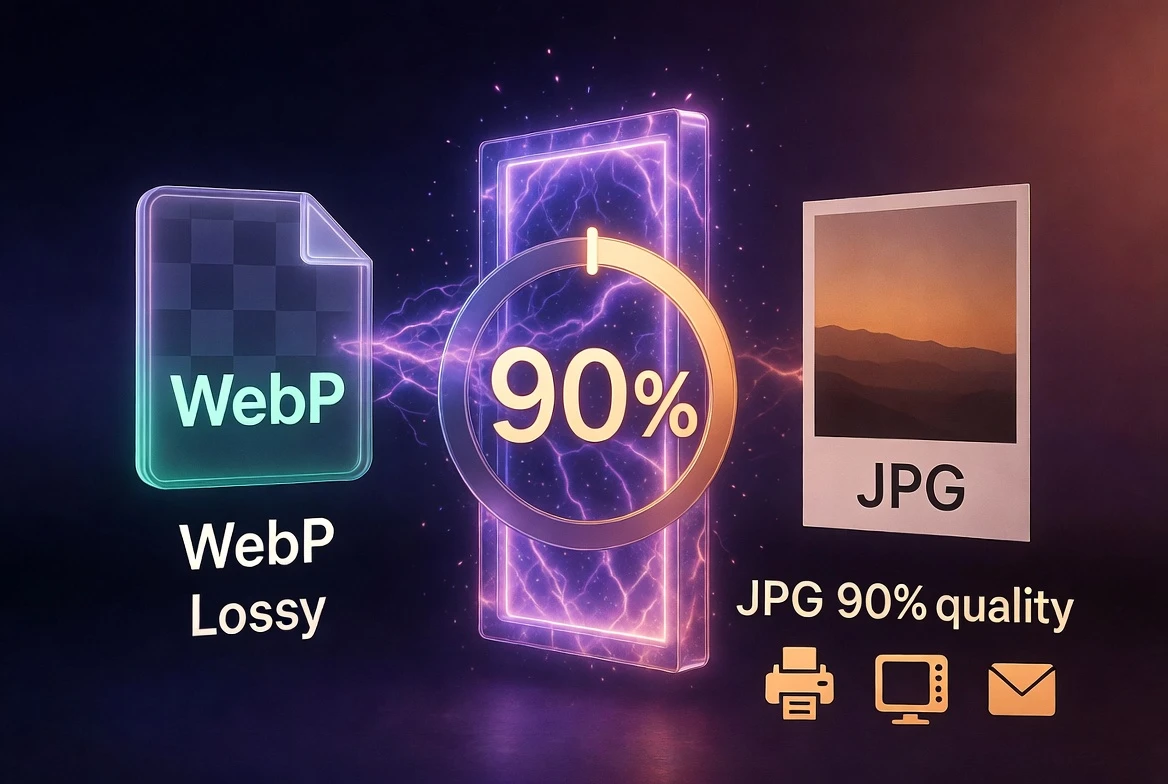
WebP is the modern standard for web images, with 95.38% browser support. But the reality is that the digital world doesn't work only in browsers: image editing software, social media file uploads, email systems, professional clients, and older devices still require JPG. In this technical guide we explain how to correctly convert WebP to JPG, what happens technically in the process, and how to minimize the inevitable quality loss in this lossy-to-lossy conversion.
We won't speculate: everything you'll read here is backed by verifiable data and tools whose behavior is officially documented.
Why Convert WebP to JPG: Verified Real Cases
The need to convert WebP to JPG is not a problem for non-technical users. It's an operational reality documented in multiple professional contexts:
1. Image editing software without WebP support
Adobe Photoshop required an external plugin to open WebP until CC 2023, where it added native support. Older versions (widely used in corporate environments with old licenses) cannot open WebP. GIMP 2.10 also doesn't support WebP without installing the webp-pixbuf-loader plugin. In these environments, JPG is mandatory.
2. Direct uploads to social media
Facebook, Instagram and LinkedIn accept WebP since 2021 for display, but their content upload systems still recommend JPG for posts. Twitter/X rejects WebP in some direct image upload functions. Pinterest and Etsy still handle JPG better in their product image processing systems.
3. Printing and pre-press
RIPs (Raster Image Processors) of professional printers and pre-press systems do not recognize WebP. For any work destined for physical printing — catalogs, brochures, printed photographs — the workflow chain requires JPEG, TIFF or PDF. Never WebP.
4. Email attachments and office documents
Microsoft Word, PowerPoint and Excel insert JPG/PNG images without problem. WebP insertion may work in recent Office 365 versions but is not guaranteed in Office 2016/2019, widely used in corporate environments. For email attachments, JPG guarantees universal compatibility.
What Happens Technically When Converting WebP to JPG
This is the critical technical data many guides omit: WebP lossy → JPG is a conversion between two lossy formats (lossy-to-lossy). This implies two-stage degradation:
- First generation of loss: When the original PNG/RAW was converted to WebP, imperceptible visual information was discarded.
- Second generation of loss: When converting that lossy WebP to JPG, a second round of information discarding is applied.
Technical note: Lossy-to-lossy conversion produces accumulation of compression artifacts: this is inherent behavior in any chain of lossy codecs (DCT→DCT), documented in the VP8 codec specification and general image compression theory. In practice, starting from a WebP with quality 85 and converting to JPG with quality 90-95, the visual result is virtually indistinguishable from the original to the human eye, although technically there is measurable SSIM degradation.
Want to understand format differences in depth? Read our technical analysis WebP vs AVIF vs JPEG with verified benchmarks.
Professional Methods to Convert WebP to JPG
Method 1: dwebp + ImageMagick (Official Google Decoder)
dwebp is Google's official tool for decoding WebP files. It's the counterpart of cwebp(which encodes) and is part of the same libwebp package.
Direct conversion with ImageMagick (single command):
magick convert image.webp -quality 90 image.jpgMethod 2: Sharp (Node.js) — High-Performance Programmatic Conversion
sharp uses libvips internally and is the fastest option for WebP → JPG conversions in Node.js environments or CI/CD pipelines.
Installation:
npm install sharpConversion with quality control:
const sharp = require('sharp')

// WebP to JPG conversion with quality 90
sharp('image.webp')
  .jpeg({ quality: 90, mozjpeg: true })
  .toFile('image.jpg')
  .then(info => console.log('Converted:', info))
  .catch(err => console.error('Error:', err))
The mozjpeg: true flag activates the MozJPEG encoder, producing JPG files 10-20% smaller than the standard JPEG encoder with the same visual quality.
Method 3: FormatVault (No Installation)
For one-time conversions, FormatVault converts WebP to JPG directly in the browser. No installations, no uploading files to any external server. Total privacy and free.
Quality Settings: How to Minimize Loss
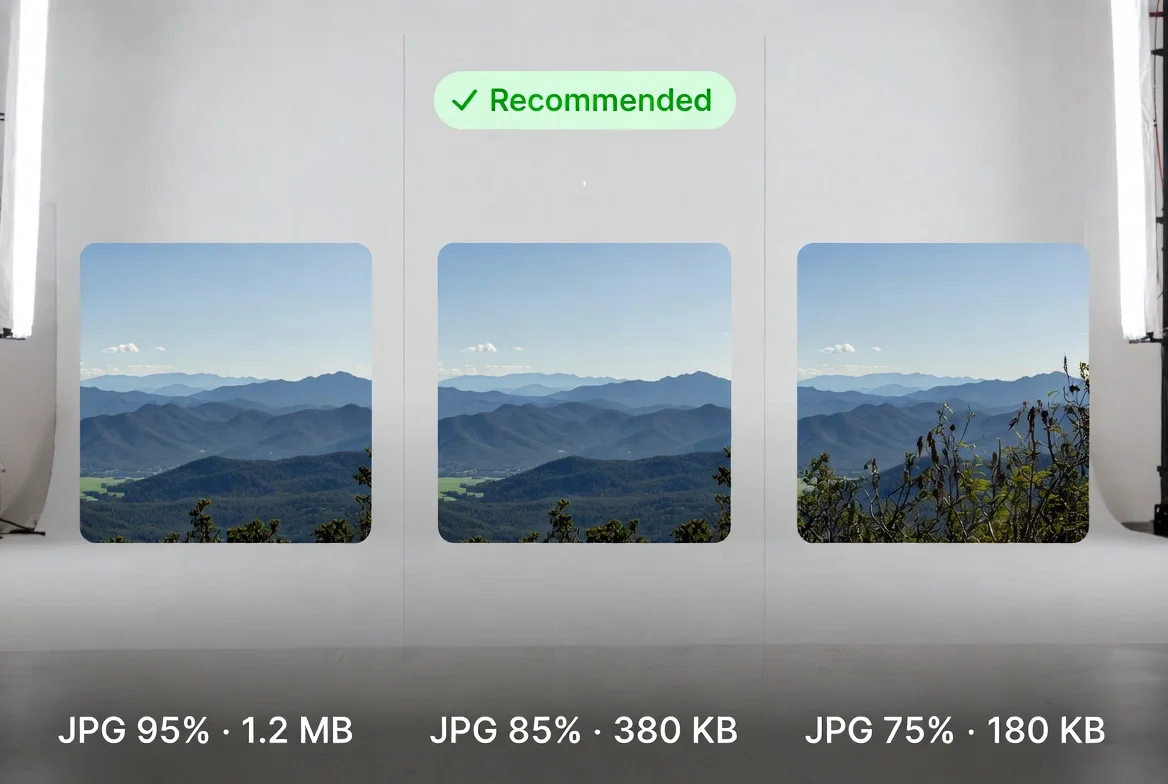
| JPG Quality | Typical size (1080p) | Additional loss | Recommended use |
|---|---|---|---|
| 95-100% | 800 KB - 2 MB | Imperceptible | Master files, printing |
| 85-92% | 300 - 600 KB | Imperceptible | Social media, email — RECOMMENDED |
| 75-84% | 150 - 280 KB | Very slight in textures | General web |
| <75% | <150 KB | Visible artifacts | Not recommended for WebP conversion |
Use Cases: When JPG Is the Right Choice
Product photography for marketplaces
- Amazon: Requires JPG or TIFF for product images. Maximum recommended 10MB, minimum 1000px on shortest side.
- eBay: JPG recommended. WebP can cause issues in their image CDN processing.
- Etsy: Accepts JPG, PNG and GIF. WebP is not officially listed as a supported format.
File delivery to clients or agencies
- Non-technical clients open JPG on any device: Windows Photo Viewer, iOS Photos, Android Gallery.
- JPG works as an email attachment in all clients: Outlook, Gmail, Apple Mail, Thunderbird.
- WebP may not open in older versions of Windows (before the 2021 Windows 11 Update).
Key context: If your goal is to serve images on a modern website with maximum performance, the correct direction is the opposite: read our guide to convert JPG to WebP and reduce weight by 35%.
Batch Conversion: Multiple Files at Once
With ImageMagick (Linux/macOS):
magick mogrify -format jpg -quality 90 *.webpWith sharp in Node.js:
const sharp = require('sharp')
const fs = require('fs')
const path = require('path')

const inputDir = './webp-files'
const outputDir = './jpg-files'

fs.mkdirSync(outputDir, { recursive: true })

fs.readdirSync(inputDir)
  .filter(f => f.endsWith('.webp'))
  .forEach(file => {
    const inputPath = path.join(inputDir, file)
    const outputPath = path.join(outputDir, file.replace('.webp', '.jpg'))
    sharp(inputPath)
      .jpeg({ quality: 90, mozjpeg: true })
      .toFile(outputPath)
      .then(() => console.log('Converted:', file))
  })
Common Mistakes and How to Avoid Them
Mistake 1: Using low JPG quality (<75%) when converting from WebP
Double lossy compression produces visible artifacts with low quality. Solution: never use less than 85% JPG quality when converting from WebP.
Mistake 2: Expecting to recover transparency
JPG doesn't support alpha transparency. Transparent pixels in a WebP will be filled with a solid color (white by default in most tools) when converting to JPG. Solution: if you need transparency, convert to PNG instead of JPG.
Mistake 3: Converting WebP to JPG for use on the web
JPG weighs more than WebP for the same visual quality. If the final destination is a website, keep the WebP. Solution: convert to JPG only when the specific recipient or system requires it.
Mistake 4: Not keeping the original WebP
Once converted to lossy JPG, the quality of the original WebP is not recoverable. Solution: always save the original WebP (or PNG/RAW) before exporting to JPG.
Frequently Asked Questions (FAQ)
Is quality lost when converting WebP to JPG?
Technically yes: it's a conversion between two lossy formats, producing accumulation of artifacts. In practice, with JPG quality of 90%, the degradation is statistically imperceptible to the human eye in photographic images. For screenshots or graphics with text, the loss may be more visible; in those cases, use 95% quality.
Can I convert animated WebP to JPG?
Not directly: JPG is a static format and cannot contain animations. When converting an animated WebP to JPG, the tool will only extract the first frame.
Does JPG support transparent backgrounds like WebP?
No. JPG has no alpha channel. Transparent pixels in a WebP will be filled with a solid color (white by default in most tools) when converting to JPG. If you need to preserve transparency, convert to PNG.
What is the optimal JPG quality for conversion from WebP?
85-92% for most photographic images. 95% for images with text or graphics where sharpness is critical. There is no perceptible benefit above 95% (only larger files).
Go further: If your ultimate goal is to optimize images for web positioning, read our complete guide to image optimization for SEO.
Conclusion
Converting WebP to JPG is necessary in specific verified scenarios: editing software without WebP support, social media uploads, printing, and file delivery to clients. In all those cases, conversion with 90% quality produces visually indistinguishable results from the original.
Always remember: keep the original WebP, don't convert for web use (where WebP is superior), and use high quality to minimize cumulative degradation. Tools like sharp, ImageMagick and FormatVault make the process technically correct in seconds.
Last updated: February 2026 | Data verified: Google Developers, Adobe, CanIUse, AOMedia
Was this article helpful?
Share it and help more people optimize their images
Related Articles
How to Convert JPG to WebP: Complete Technical Guide
WebP reduces JPG weight by 25-35%. Ideal for serving images on web with maximum performance.
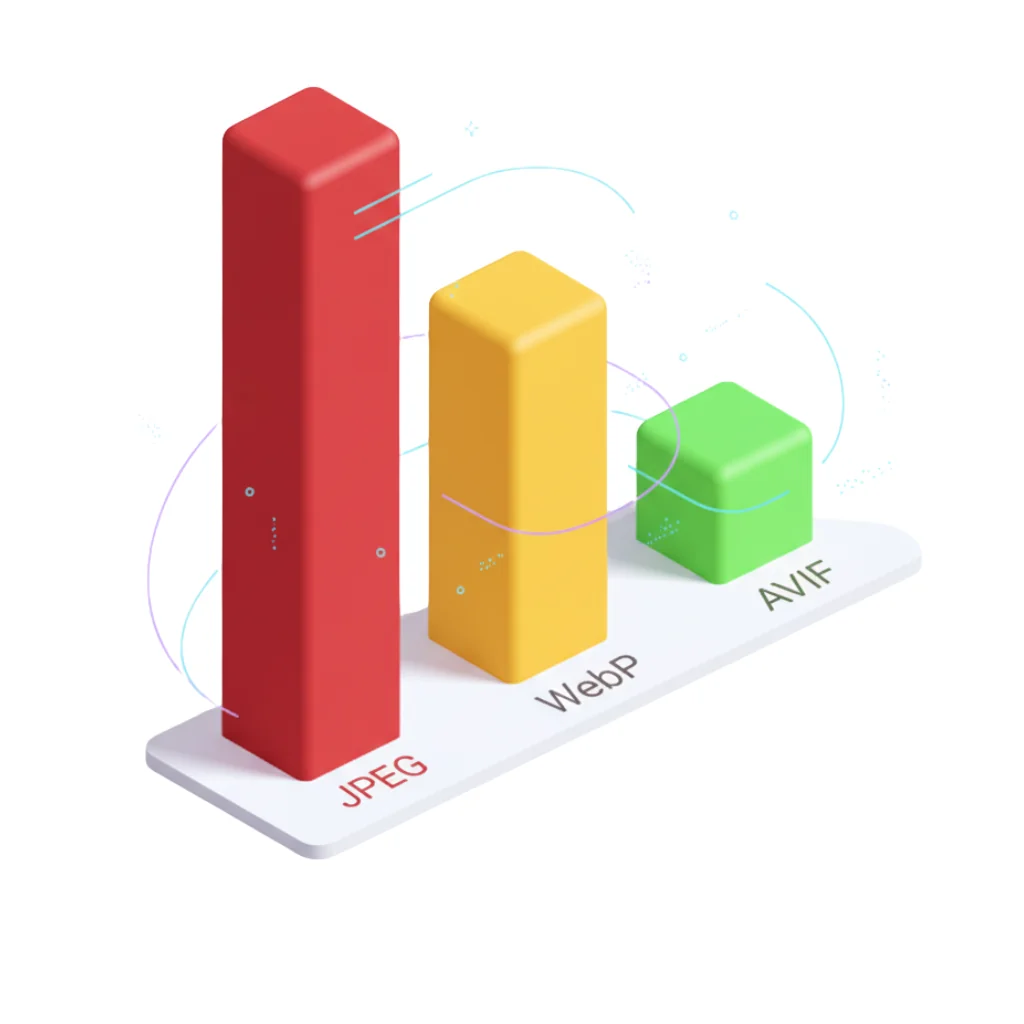
WebP vs AVIF vs JPEG: Complete Technical Analysis
Definitive technical comparison with official Google data 2025.
Reduce Image Size by 80% Without Losing Quality
The science of lossy vs lossless compression with visual examples.